Today I’m taking the first step to enabling the NPU in my new laptop that I posted about previously.
Following the instructions, here, I first installed the Visual Studio Community Edition with “Desktop Development with C++”
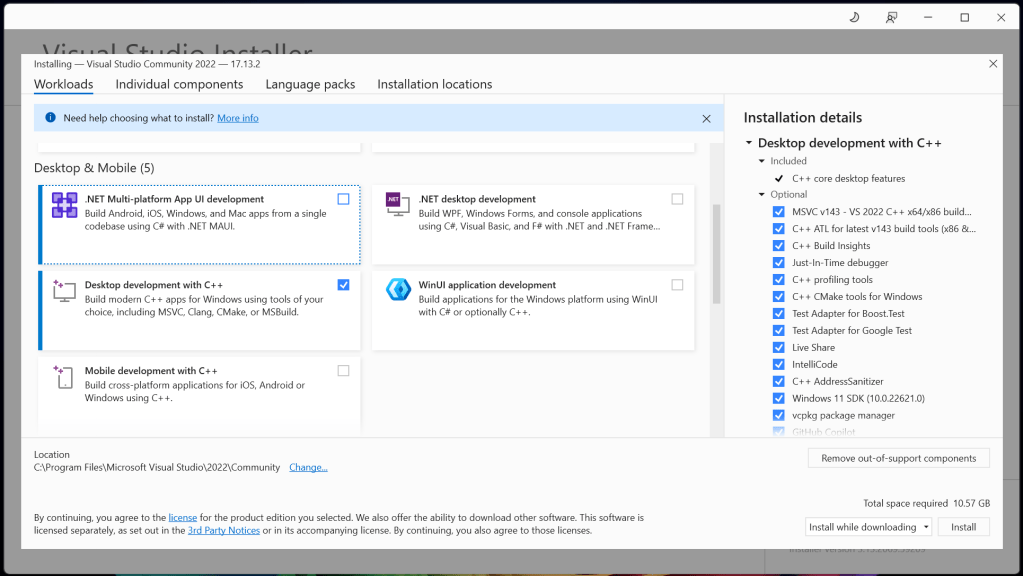
Installation moving along just fine:
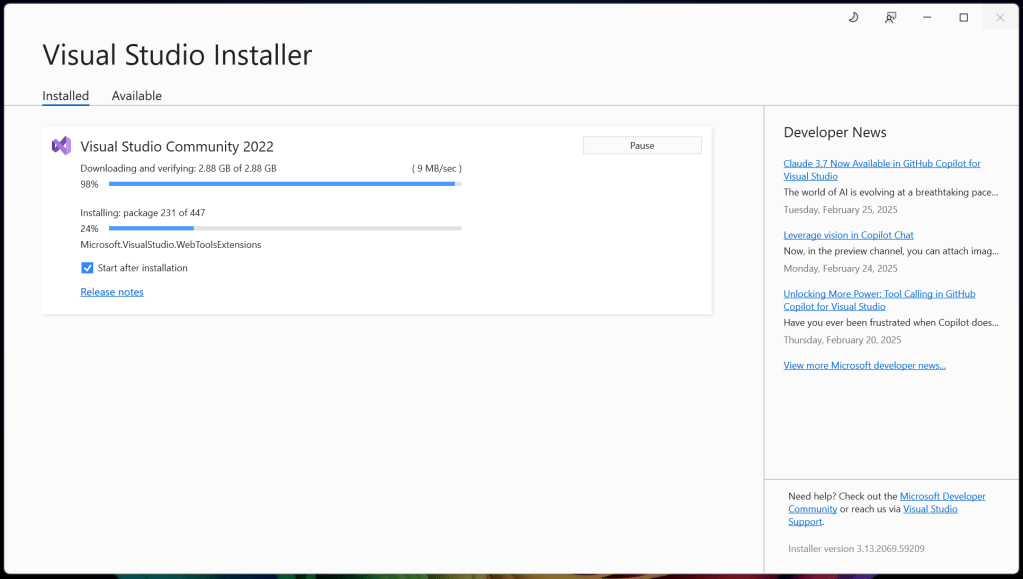
And there we go… successfully installed:
Next I installed the NPU drivers, validating the correct version was installed as suggested:
PS C:\Users\username\Downloads\RAI_1.3.1_242_WHQL> .\npu_sw_installer.exe
Name buffer: C:\Users\username\Downloads\RAI_1.3.1_242_WHQL
Time (d/m/y H:M:S): 02-03-2025 15:41:36
Host Name: OMNIAI

CPU: AMD Ryzen AI 9 HX 375 w/ Radeon 890M
  Max Clock Speed (MHz): 2000
  Cores: 12
  Logical Processors: 24

BIOS: W81 Ver. 01.01.14
  Date: 25/11/2024 00:00:00 +000
  Version: HPQOEM - 1

GPU Controller: AMD Radeon(TM) 890M Graphics
  Date: 06/01/2025 00:00:00 -000
  Version: 32.0.12010.10001

OS Version: 10.0.26100
  OS Name: Microsoft Windows 11 Pro
  OS Architecture: 64-bit

*majorVersion: 10
*minorVersion: 0
*buildNumber: 26100
*decimalBuildNumber: 3194
Searching for MCDM drivers...
This is a STX platform with MCDM installed.

Existing NPU MCDM driver info:
  Version: 32.0.201.204
  Description: NPU Compute Accelerator Device
  Date (mm/dd/yyyy): 7/26/2024
NPU MCDM driver info:
  Version: 32.0.203.240
  Description: NPU Compute Accelerator Device
  Date (mm/dd/yyyy): 12/3/2024
Found MCDM driver success.
Windows 24 detected. Version: 10.0.26100.3194
Uninstalling existing driver...

Existing driver uninstalled successfully!
Installing MCDM driver from C:\Users\username\Downloads\RAI_1.3.1_242_WHQL\npu_mcdm_stack_prod\kipudrv.inf...

Driver installed successfully!
NPU MCDM driver info:
  Version: 32.0.201.204
  Description: NPU Compute Accelerator Device
  Date (mm/dd/yyyy): 7/26/2024
NPU MCDM driver info:
  Version: 32.0.203.242
  Description: NPU Compute Accelerator Device
  Date (mm/dd/yyyy): 12/31/2024
PS C:\Users\username\Downloads\RAI_1.3.1_242_WHQL>
At this point I began the section for installing Ryzen AI Software (ryzen-ai-1.3.1.msi) and it errored out, saying it couldn’t find Conda. Looking back at the dependencies, Anaconda is certainly listed there as a dependency… but then I also saw this:

Maybe I’m on the wrong course… I guess it helps to read ahead, a little… so having a look at that link for “Running LLMs” which leads me to this “OGA Hybrid Execution Mode” page.
In reviewing those requirements…
- NPU Drivers – check (at least that wasn’t wasted effort before I realized I may have been on the wrong track)
- Ryzen AI 1.3 MSI installer – ok… I guess I need to install Conda so I can complete the install… so the previous steps I performed definitely weren’t for naught…
It looks like I have the option to install Anaconda or Miniconda. Without going too deep into the details, it looks like Anaconda has a lot of extra bells and whistles for Machine Learning that I may not use… I’m going to go for Miniconda and see if that gets me what is needed to continue. I found a page with instructions for installing Miniconda, so let’s see how that goes…
PS C:\Users\username> wget "https://repo.anaconda.com/miniconda/Miniconda3-latest-Windows-x86_64.exe" -outfile ".\miniconda.exe"
PS C:\Users\username> Start-Process -FilePath ".\miniconda.exe" -ArgumentList "/S" -Wait
Welcome to Miniconda3 py312_25.1.1-2                                                                                                                                                                                                            By continuing this installation you are accepting this license agreement:
C:\ProgramData\miniconda3\EULA.txt
Please run the installer in GUI mode to read the details.

Miniconda3 will now be installed into this location:
C:\ProgramData\miniconda3

Unpacking payload...
Setting up the package cache...
Setting up the base environment...
Installing packages for base, creating shortcuts if necessary...
Initializing conda directories...
Running post install...
Setting installation directory permissions...
Done!
PS C:\Users\username> del .\miniconda.exe
PS C:\Users\username>
Ok… that seemed to go well. It now says to open the Anaconda Powershell Prompt… and that worked, I was able to check the version, too:
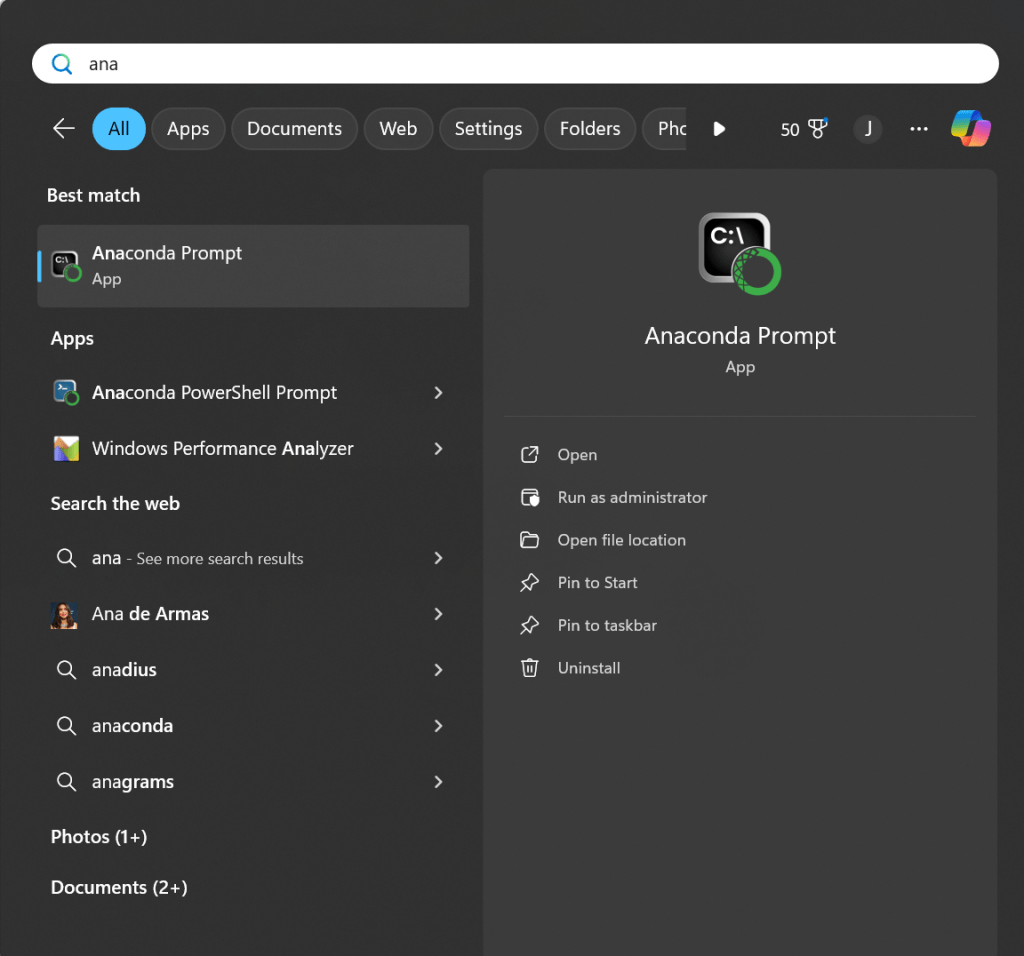
(base) C:\Users\username>conda --version
conda 25.1.1

(base) C:\Users\username>
And when I try the Ryzen AI Software MSI again and get the same error…
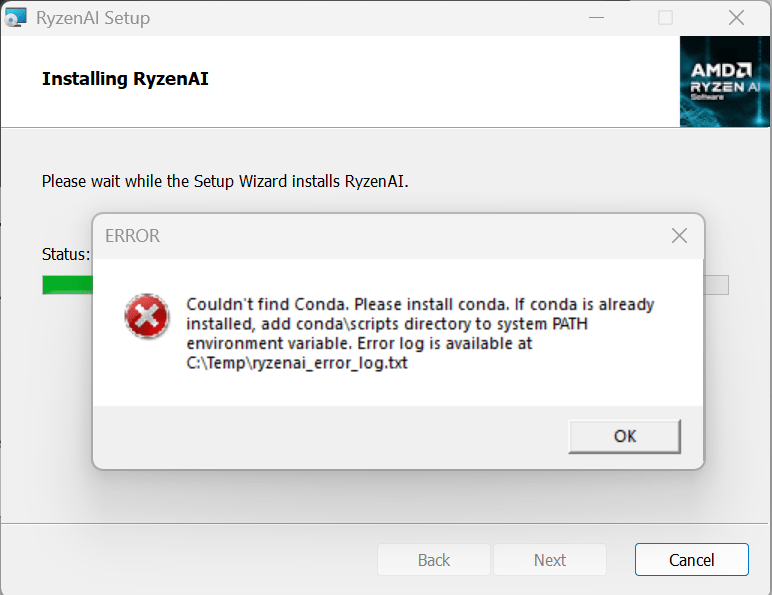
… so let me figure out how to do what it suggests…
A quick web search refreshes my memory:
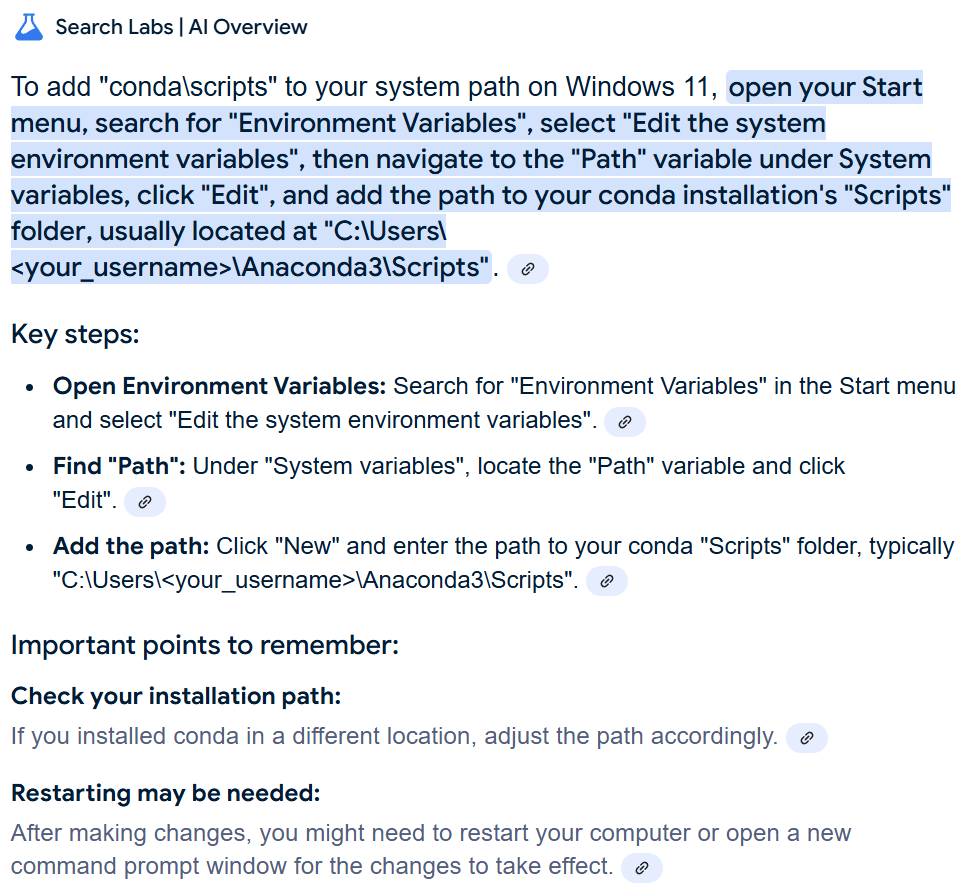
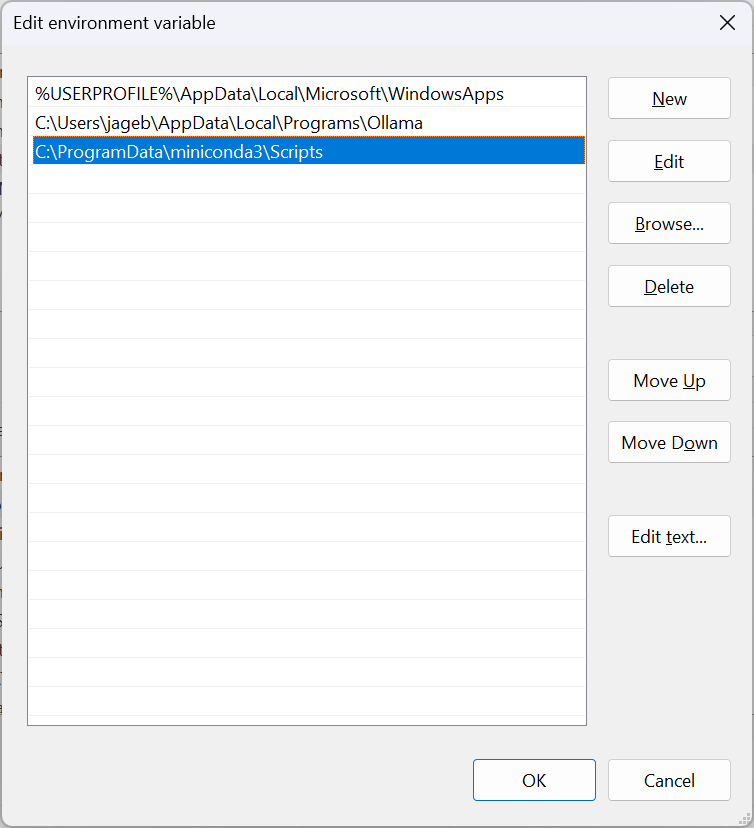
… after a fresh reboot I get the same error message, and if I look in the text log file it mentions, I see the following:
'conda' is not recognized as an internal or external command,
operable program or batch file.
Very interesting seeing as how I can run “conda” both in PowerShell as well as the Windows Command Prompt. I wonder if this could be related to my choice to use Miniconda rather than the more robust Anaconda…
Either way, this endevour is going to extend into a second session/post as I’ve got some other things to do today. Stay tuned for Part 2, and hopefully a working LLM powered by my Ryzen AI 9 HX 375’s NPU!
 ANotSoI
Leave a comment